Swift Salamander User Guide / See Your Files Your Way
Edit the Sidebar
Turn on Edit Mode to add, rename, recolour, group, move and remove what the sidebar shows.
Edit Mode puts a button beside everything in the sidebar that you can change. Every sidebar task has a button there, so you never need a toolbar button to find one.
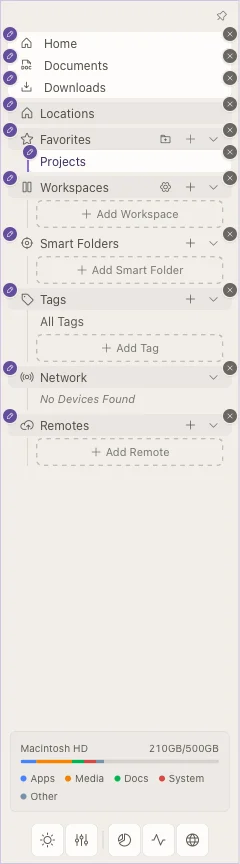
Turn Edit Mode On and Off
- Choose View > Edit Mode, or press ⌥⌘E.
- When you are done, click Done in the Editing Interface bar, or press ⌥⌘E again.
You can also find Edit Mode in the command palette (⌘K).
What the Buttons Do
Every row has two buttons:
- The pencil opens the editor for that row. Change its name, its icon and its colour there.
- The remove button (×) takes the row off the sidebar. Only the entry goes: the folder itself stays where it is. A note with Undo appears, so you can bring it back.
Each section heading has buttons for that section:
| Section | Buttons |
|---|---|
| Favorites | + adds the folder the active pane is showing. New Group… makes a new group of favorites. |
| Workspaces | + saves the current tabs and panes as a workspace. The gear opens Manage Workspaces…. |
| Smart Folders | + saves a search as a smart folder. |
| Tags | + adds a tag. |
| Remotes | + adds a server or cloud remote. |
The remove button on a section heading hides the whole section. To bring a hidden section back, click Show Hidden Section in the sidebar while Edit Mode is on.
Group Your Favorites
Groups keep your favorites apart, for example Work, Personal and Media. Each group has its own heading, icon and colour.
Make a New Group
- Turn Edit Mode on.
- In the Favorites heading, click New Group….
- Type a name and press Return.
New Favorites Group… in the command palette does the same.
Rename a Group, or Change Its Icon and Colour
- Click the pencil beside the group's heading.
- Change the name, pick an icon and pick a colour.
The heading shows the icon and colour you picked. Two groups cannot have the same name.
Move a Favorite Into or Out of a Group
- Drag the favorite onto the group's heading, or between two of its members. A line shows where it will land.
- To take it out, drag it above or below the group.
- Or click the pencil beside the favorite and choose a group, or No Group, under Move to Group.
Remove a Group
- Click Remove Group and Its Favorites beside the group's heading.
- If the group holds favorites, the app asks first. Click Remove to go ahead.
An empty group goes at once, with Undo. The folders themselves stay where they are. To keep the favorites and drop only the group, click Ungroup instead.
Workspaces
A workspace remembers your tabs, panes and their folders. In Edit Mode:
- Click + in the Workspaces heading to save what is on screen now.
- Click the pencil beside a workspace to rename it or change its icon and colour.
- Drag a workspace up or down to change the order.
- Click the gear to open Manage Workspaces…, where you can also set a shortcut for each one.