Swift Salamander User Guide / Preview
Preview a File
How to see what a file contains without opening it, and how to zoom in on it.
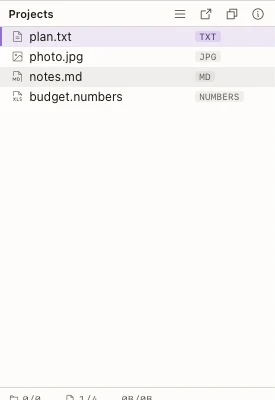
The preview panel shows the selected file. You can see a picture, a PDF or some text without opening the file in another app.
Show or Hide the Preview
- Press ⌥⌘P, or choose View > Show Preview from the menu bar.
To put the preview below the file lists, choose View > Preview at Bottom.
Look at a File in Full Screen
- Select the file.
- Press Space. The file opens in a Quick Look window.
- Press Space again to close it.
Zoom a Picture or a PDF
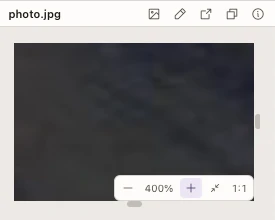
- Select the picture or PDF in the file list, so it shows in the preview panel.
- Use the Zoom controls in the preview to choose Zoom In, Zoom Out or Fit.
Look Inside a Folder or Archive
- Select a folder or archive in the file list.
- Look at its contents in the preview.
- Select an item in the preview to work with it.