Swift Salamander User Guide / Start Here
The Window at a Glance
The main parts of the window, and what each part is for.
This page names the main parts of the window. The other pages use these names.
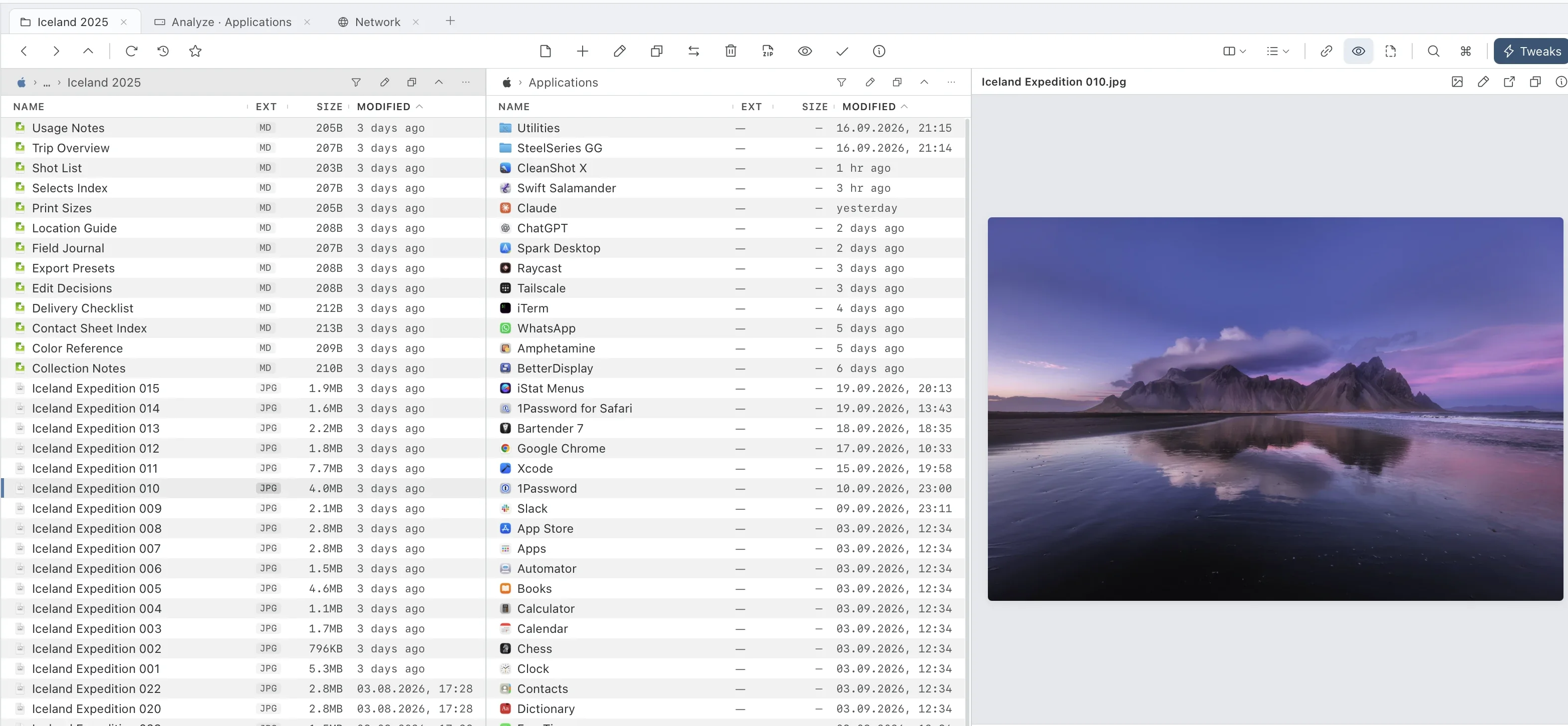
The Parts of the Window
- Sidebar. The list on the left. It holds your favorite folders, your disks, the Network section and Cloud Storage. Click an entry to open that folder. To hide the sidebar, press ⌥⌘S. To add, group, recolour or remove entries, see Edit the Sidebar.
- Panes. The two file lists side by side. One pane is active at a time. The active pane has the cursor. Press Tab to move to the other pane.
- Toolbar. The row of buttons across the top. It has Back, Forward, Up, Refresh and History. It also has View As, which changes how the files look.
- Preview panel. Shows a picture of the selected file. Press ⌥⌘P to show or hide it.
- Status bar. The line at the bottom. It shows the number of items in the folder, how many are selected, and the progress of any copy or move. It also tells you when an update is ready.
Words You Will See
- A folder holds files and other folders. Some people call it a directory.
- A tab is a second folder view inside the same window. See Work With Tabs.